Super Bear Adventure
For PC
Super Bear Adventure is a fre e 3D platformer by Earthkwak Games, inspired by late-90s console classics. You play as Baaren, a brave bear who explores open worlds, rescues captured friends and fights enemies turned mindless by strange purple honey.
Super Bear Adventure is a free 3D platformer by Earthkwak Games, inspired by late-90s console classics. You play as Baaren, a brave bear who explores open worlds, rescues captured friends and fights enemies turned mindless by strange purple honey.
The game has no standalone Windows version, no Steam release and no official .exe download. It is made for Android, iOS and Nintendo Switch. You can still play it on a Windows PC through Google Play Games on PC, Google’s official app for running Play Store games on Windows.
| Quick facts | Details |
|---|---|
| Developer | Earthkwak Games |
| Official PC method | Google Play Games on PC |
| Price | Free, with ads and optional in-app purchases |
| Windows version | Windows 10 (version 2004) or newer |
| Latest game version | 13.0.8 (October 5, 2026) |
| Steam version | Not available |
Can You Play Super Bear Adventure on PC?
Yes, but not through a normal Windows download. You play the Android version of the game on your PC, either through Google Play Games or through a third-party Android emulator.
Official PC Version vs Android Emulator
Google Play Games is run by Google and installs the game straight from the Play Store, so it is the safer and simpler choice. An Android emulator such as BlueStacks also runs the Play Store version, but it is third-party software that Earthkwak Games does not make or support.
If Google Play Games works on your PC, use it. An emulator is a fallback for PCs or regions where Google Play Games is not available. You can find a full comparison further down this page.
Super Bear Adventure PC System Requirements
Earthkwak Games does not publish separate PC requirements. What your PC needs is set by Google Play Games, the app that runs the game. These are Google’s published requirements.
| Component | Minimum | Recommended |
|---|---|---|
| Operating system | Windows 10 (version 2004) | Windows 10 (version 2004) or newer |
| Processor | 4 physical CPU cores | 8 logical CPU cores |
| Graphics | Intel UHD Graphics 630 or similar | Gaming-class GPU, such as Nvidia GeForce MX450 |
| Memory (RAM) | 8 GB | 8 GB |
| Storage | SSD with 10 GB free | SSD with 10 GB free |
| Account | Windows administrator account | Windows administrator account |
| Virtualization | Hardware virtualization turned on | Hardware virtualization turned on |

Minimum System Requirements
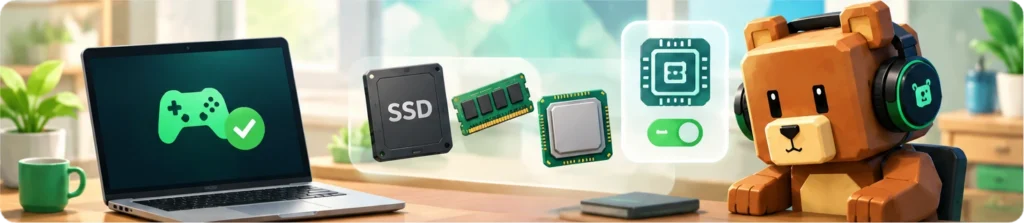
The minimum specs are enough to install and launch the game. Google notes that some games may not run well below these specs, so treat them as the floor, not a target. The 10 GB of storage covers Google Play Games itself, not just the game.
Two requirements catch many players out. You need a solid-state drive (SSD), not an older hard drive, and hardware virtualization must be switched on.
Recommended Requirements
For smoother play, Google recommends a CPU with 8 logical cores and a dedicated gaming graphics card. A better GPU helps most in busy scenes and four-player multiplayer sessions.

Windows Compatibility
Google Play Games needs Windows 10 version 2004 or newer, so Windows 11 is also supported. To check your version, press Windows key + R, type winver and press Enter.
Windows 7 and Windows 8 cannot run Google Play Games. On those systems, the only option is a third-party emulator that still supports them, though Microsoft no longer provides security updates for either version.
Your Google Account must also be set to a country where Google Play Games on PC is offered. Google lists the supported countries on its eligibility page.
How to Download Super Bear Adventure on PC
The whole process takes about 10–15 minutes, most of it spent installing Google Play Games. You need a personal Google Account and an internet connection.
Check Google Play Games PC Compatibility
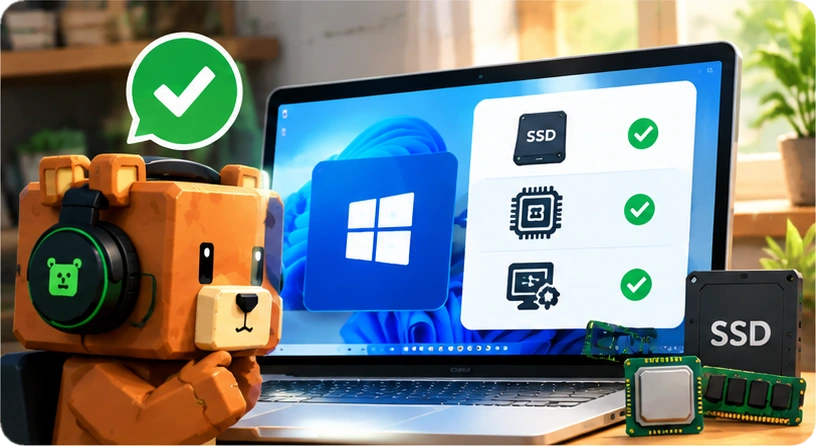
1. Confirm you are on Windows 10 (version 2004) or Windows 11 by running winver.
2. Make sure your PC has an SSD with at least 10 GB free.
3. Open Task Manager (Ctrl + Shift + Esc), go to Performance > CPU and look for Virtualization: Enabled.
If virtualization shows as Disabled, turn it on in your PC’s BIOS or UEFI settings. The option is usually called Intel VT-x, Intel Virtualization Technology or AMD SVM. The exact steps depend on your PC maker, so check their support site if you are unsure.
Find Super Bear Adventure
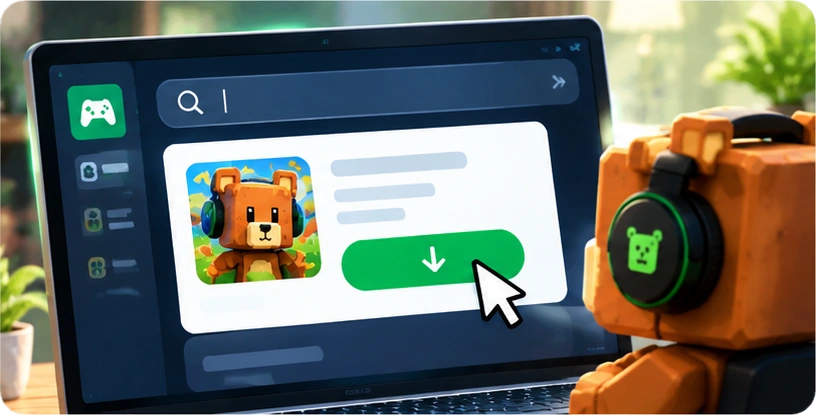
1. In Google Play Games, click the search bar.
2. Type Super Bear Adventure.
3. Select the game published by Earthkwak Games. Similar-sounding games by other developers may appear, so check the name.
If the game does not appear, it may not be offered in your country or on your PC yet. See the troubleshooting section below.
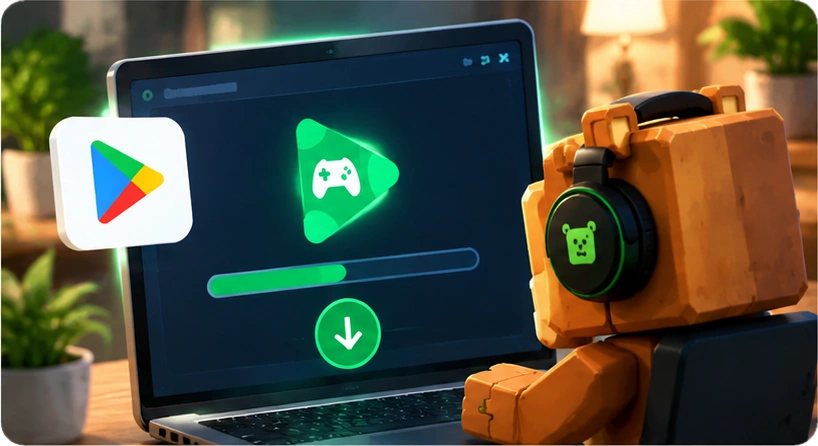
Install Google Play Games
1. Go to the Google Play Games on PC page for Super Bear Adventure.
2. Download the official installer from Google.
3. Run the installer and follow the prompts. Windows may ask for administrator permission.
4. Restart your PC if the installer asks you to.
5. Open Google Play Games and sign in with your Google Account.
Install and Launch the Game
1. Click Install on the game’s page.
2. Wait for the download to finish.
3. Click Play to start the game.
4. Follow the short tutorial to learn Baaren’s moves.
While playing, press F11 or Alt + Enter to switch full screen on or off. Press Shift + Tab to open the Google Play Games options menu, where you can also exit the game.
Super Bear Adventure PC Gameplay
The PC version is the same game as on Android, with the same levels, updates and content. The only real difference is a bigger screen and keyboard, mouse or controller input.
Explore the Game Worlds
The main adventure spans six open-world levels, including Turtletown, Snow Valley, the Beemothep Desert, the Giant House and The Hive. Each one can be explored freely, with mountains to climb, water to swim through and hidden paths to find. Bear Village is the hub that connects them.
Rescue Captured Bears
The purple honey has turned the kingdom’s creatures against you, and many bears are locked in cages. Freeing them is the main goal and moves the story forward. Each main area ends with a boss fight, building up to the final
battle in The Hive.
Collect Coins and Hidden Items
Every level is packed with coins, keys, stickers and hidden chests. Coins pay for most of the cosmetic items in the
game. Daily missions from Tristopio and arcade
mini-games in the Arcade World give you more ways to earn rewards.
Character Customization
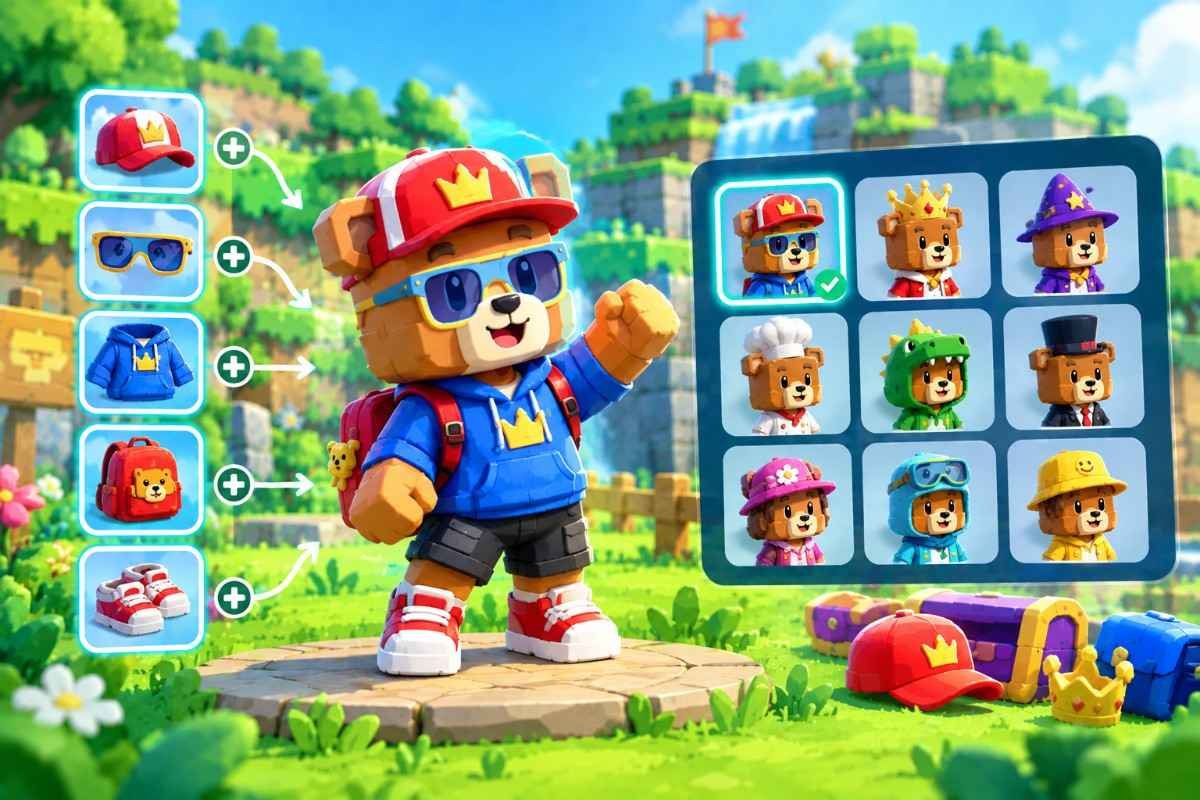
You can dress Baaren in hundreds of hats, outfits and accessories. Many items can be combined and upgraded, and the wardrobe lets you save preset outfits and search for items. Most items are earned with coins, while themed bundles are optional paid extras.
Multiplayer Features
Online co-op supports up to four players. Go to the Network Machine in Bear Village, create a party, and share the invite code with friends, or enter a friend’s code to join them.
The developer says multiplayer is cross-platform between Android, iOS and Nintendo Switch. Because Google Play Games runs the Android version, PC players should be able to join those parties, though this has not been officially confirmed for PC. Everyone in a party needs the same game version.
When multiplayer launched, The Hive, the Arcade World and Tristopio’s missions were single-player only. The developer said this was “for now”, so check in game for the latest status.
Super Bear Adventure PC Controls
The game was built for touch screens, but it also supports keyboards and controllers. The developer added keyboard controls in 2017, gamepad support in 2018 and a key bindings menu in 2021.
Keyboard and Mouse Controls
Baaren’s main moves are the same on every platform: run, jump, attack, dive, belly stomp, climb, wall run and ledge grab. On PC you trigger them with keys instead of on-screen buttons.
Default keys can change between updates, so the in-game controls or bindings menu is the most reliable place to see the current layout. The mouse works for menus, the wardrobe and the shops.
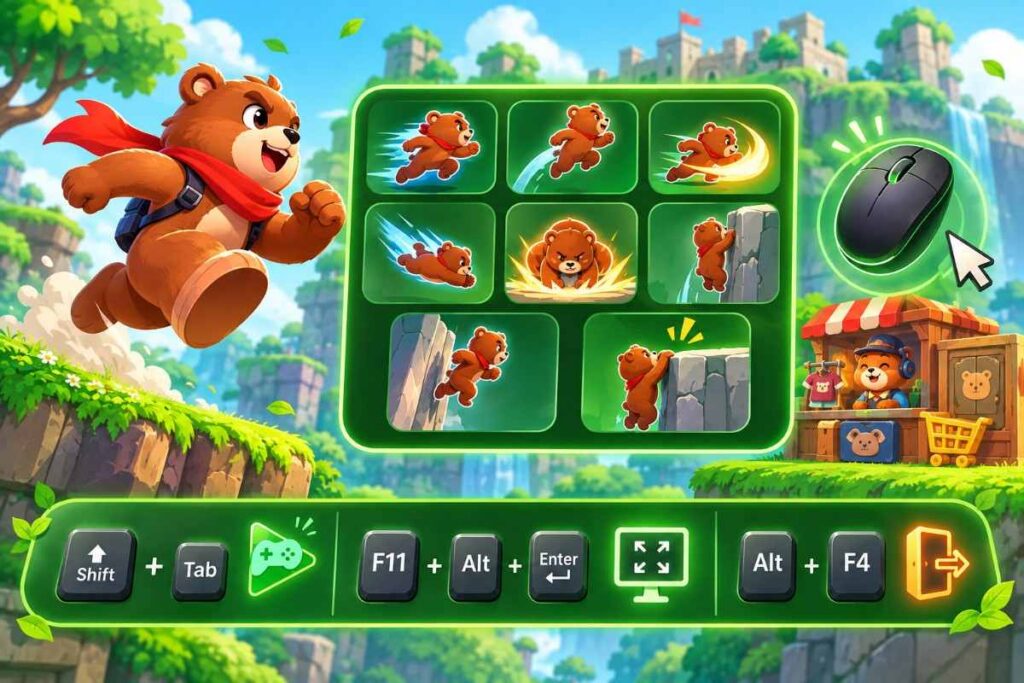
| Shortcut | What it does |
|---|---|
| Shift+Tab | Opens the Google Play Games options menu |
| F11orAlt+Enter | Switches full screen on or off |
| Alt+F4 | Closes the game |
Controller Support
Super Bear Adventure supports gamepads. When a controller is connected, the on-screen jump and attack buttons switch to controller icons, and you can hide the touch controls completely. The developer originally tested support with Xbox 360 and DualShock 4 controllers.
Whether your controller works through Google Play Games depends on the PC app as well as the game. Connect your controller before launching the game, and check the controls menu if it does not respond..
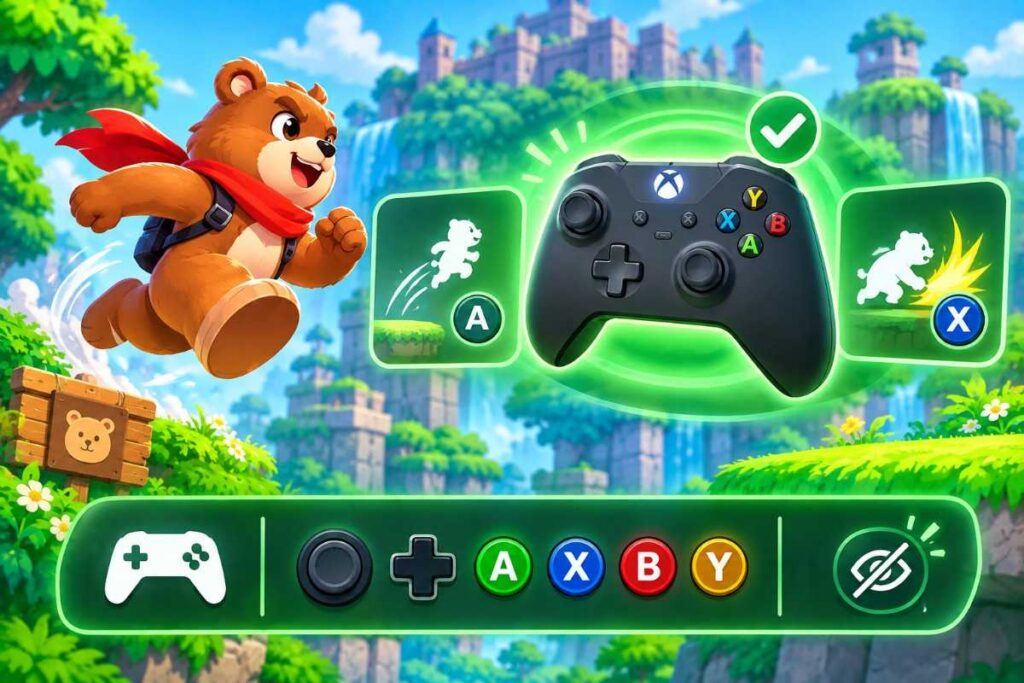
Customize Your Controls
Open the game’s settings and go to the keyboard or gamepad bindings menu to change which key or button does what. Pick a layout you can reach comfortably, such as keeping movement under your left hand and jump and attack under your right.
If you use an Android emulator instead, it will have its own key-mapping tool on top of the game’s settings.
If you use an Android emulator instead, it will have its own key-mapping tool on top of the game’s settings.
Super Bear Adventure PC Performance
Most performance problems on PC come from outdated graphics drivers, a hard drive instead of an SSD, or too many programs running in the background. Fix those first before changing game settings.
Graphics and Display Settings
The game’s options menu includes graphics settings. Higher settings add extra details, such as decorative birds and fish, while lower settings reduce the load on your PC. Motion blur is optional, and the developer warns it can be demanding on some devices.
Press F11 to play in full screen. Full screen gives you the biggest view of each world.
Improving Game Performance
- Update your graphics drivers. Open Task Manager, go to Performance and click your GPU to see its model. Download the latest driver from Intel, Nvidia or AMD. If your PC has two GPUs, update both.
- Close background apps. Browsers, video calls and downloads all compete for memory.
- Plug in your laptop. Many laptops slow down the processor and graphics on battery power.
- Restart Google Play Games. Right-click its icon in the taskbar’s notification area, click Exit, then reopen it.
- Keep everything updated. Update the game, Google Play Games and Windows.
Tips for Low-End PCs
- Lower the graphics settings in the game’s options menu.
- Turn off motion blur.
- Avoid four-player multiplayer sessions if the game struggles, since busy scenes demand more from your PC.
- Make sure Google Play Games is installed on an SSD, as Google requires.
Google Play Games PC vs Android Emulator
Both options run the Android version of Super Bear Adventure, but they work differently. Here is how they compare.
| Feature | Google Play Games on PC | Android emulator (e.g. BlueStacks) |
|---|---|---|
| Made by | Third-party companies | |
| Game source | Official Play Store listing | Play Store inside the emulator |
| Windows version | Windows 10 (v2004) or newer | Depends on the emulator; some support older Windows |
| Storage | SSD with 10 GB free | Varies; BlueStacks lists 10 GB free |
| Region limits | Only in supported countries | Usually none |
| Game availability | Only games Google has approved for PC | Most Play Store games |
| Key mapping | Built-in game controls | Emulator’s own key-mapping tools |
| Ads in the app | No | Some emulators show their own ads or offers |
| Cost | Free | Usually free |
Installation Differences
Google Play Games is a single app from Google: you install it, sign in and download the game. An emulator creates a full virtual Android device on your PC. You install the emulator, sign in to Google Play inside it, then install the game as you would on a phone.
Compatibility
Google Play Games has stricter rules. It needs Windows 10 version 2004 or newer, an SSD, virtualization and a supported country. Emulators are often more flexible, but Earthkwak Games does not test or support them, so bugs are more likely.
Controls and Gameplay
The game itself plays the same either way, with the same levels, updates and multiplayer. The difference is in input. Google Play Games relies on the game’s own keyboard and controller support. Emulators add their own key-mapping layer, which gives you more control but takes more setup.
Which Option Should You Choose?
• Choose Google Play Games if you have Windows 10 or 11, an SSD, and live in a supported country. It is official, simpler and has no extra ads.
• Choose an emulator only if Google Play Games is not available to you, or the game does not appear there. Download the emulator from its official website only.
Whichever you choose, install the game from the Play Store, never from a website offering an APK or .exe file.
Common Super Bear Adventure PC Problems
Most problems come from Google Play Games rather than the game itself. Start by restarting the app: right-click its icon in the taskbar notification area, click Exit, then open it again.
Game Not Showing in Google Play Games
• Check your country. Google Play Games on PC only works when your Google Account’s Play country is a supported region. See Google’s eligibility page.
• Use a personal Google Account. Work and school accounts may not be eligible.
• Check your hardware. Google can block a game on PCs it does not support. Some games are only playable on certain processors, and Google Play Games will show a message if that applies.
• Search for the developer. Make sure you are looking for the game by Earthkwak Games.
If it still does not appear, Super Bear Adventure is not available on your PC through Google Play Games right now. An emulator is the alternative.
Installation Problems
• Turn on virtualization. Check Task Manager > Performance > CPU. If it says Disabled, enable Intel VT-x or AMD SVM in your BIOS or UEFI.
• Free up SSD space. Google Play Games needs at least 10 GB free on an SSD.
• Use an administrator account. The installer needs admin rights.
• Update Google Play Games. Right-click its taskbar icon and choose Check for updates.
• Reinstall if updates fail. Uninstall Google Play Games, download a fresh installer from Google, and install it again.
Game Crashing or Not Opening
1. Restart Google Play Games, then restart your PC.
2. Update your graphics drivers from Intel, Nvidia or AMD.
3. Update the game and Google Play Games to the latest versions.
4. Install pending Windows updates.
Version 13.0.8 of the game fixed physics problems from the previous update, so staying current can also fix odd movement.
Lag and Performance Issues
• Update your graphics drivers and close background apps.
• Lower the in-game graphics settings and turn off motion blur.
• Plug in your laptop so it runs at full power.
• Compare your PC with the requirements table above. Below-minimum PCs may not run the game well.
Multiplayer Connection Problems
• Match game versions. Every player needs the same version. The version number appears on the lobby screen.
• Paste the invite code. Copy and paste it instead of typing it.
• Check the party size. A party holds up to four players.
• Start a fresh party. Ask the host to create a new party and share the new code.
• Check your connection. Restart your router or try a wired connection.
If nothing works, contact Earthkwak Games through the official support page, which links to their email and Discord server. For problems with the Google Play Games app itself, use Google’s help page.
Frequently Asked Questions
Final Thoughts
Super Bear Adventure has no standalone Windows release, but Google Play Games on PC gives you an official way to play it on Windows 10 or 11. You get the same worlds, updates and multiplayer as on Android, on a bigger screen with keyboard or controller support.
Before you start, check that your PC has an SSD, 8 GB of RAM and virtualization switched on. If Google Play Games is not available in your country, an emulator from its official website is the backup option. Either way, install the game from the Play Store, not from sites offering .exe or mod files.